Disable Auto Update
Stop macOS from restarting your Mac mini to install updates, so your desktop agents stay online.
A Mac mini that runs your desktop agents should stay on all the time. By default, macOS downloads updates and installs them overnight. Installing an update restarts the Mac, and while it is restarting, Workle and every agent on that machine go offline. If FileVault is on, the Mac then waits at the login screen and the agents stay offline until someone signs in again.
Turning off automatic updates means the Mac mini only restarts when you choose.
These steps are for macOS Tahoe (macOS 26). You need an administrator account on the Mac mini.
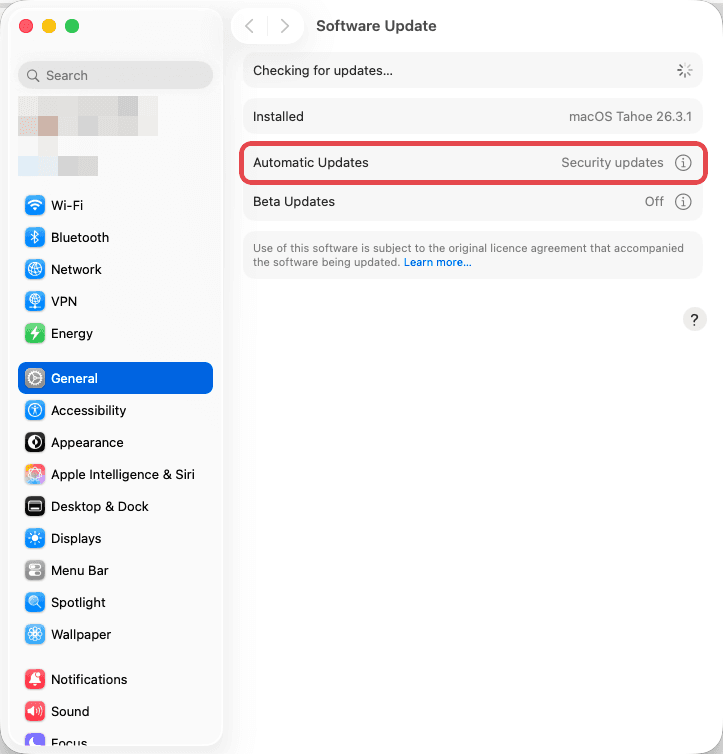
1. Open Software Update
Open the Apple menu > System Settings, click General in the sidebar, then click Software Update.
Next to Automatic Updates, click the ⓘ button.
2. Turn off every automatic option
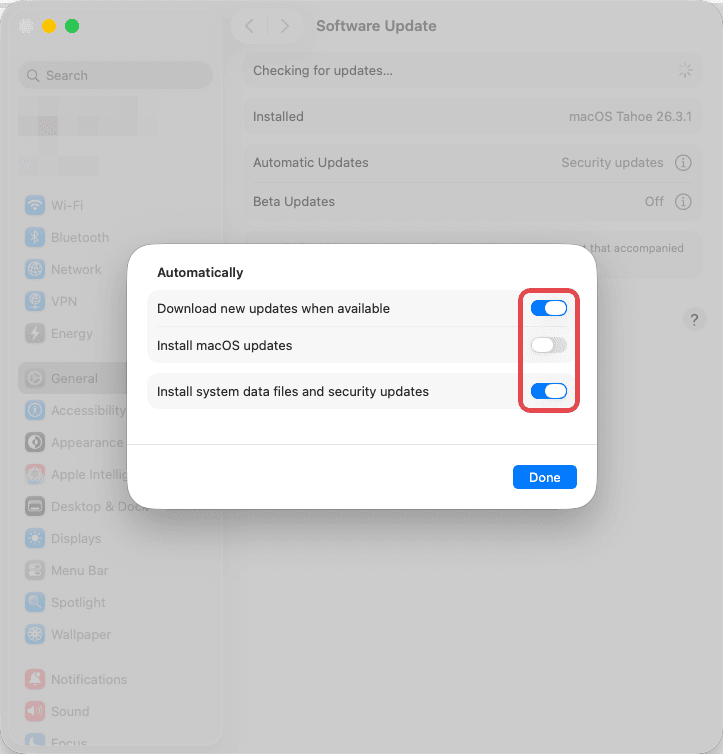
A sheet titled Automatically opens. Turn off all three switches:
- Download new updates when available
- Install macOS updates
- Install system data files and security updates
If macOS asks for your password, enter your administrator password. Then click Done.
3. Check it says Off
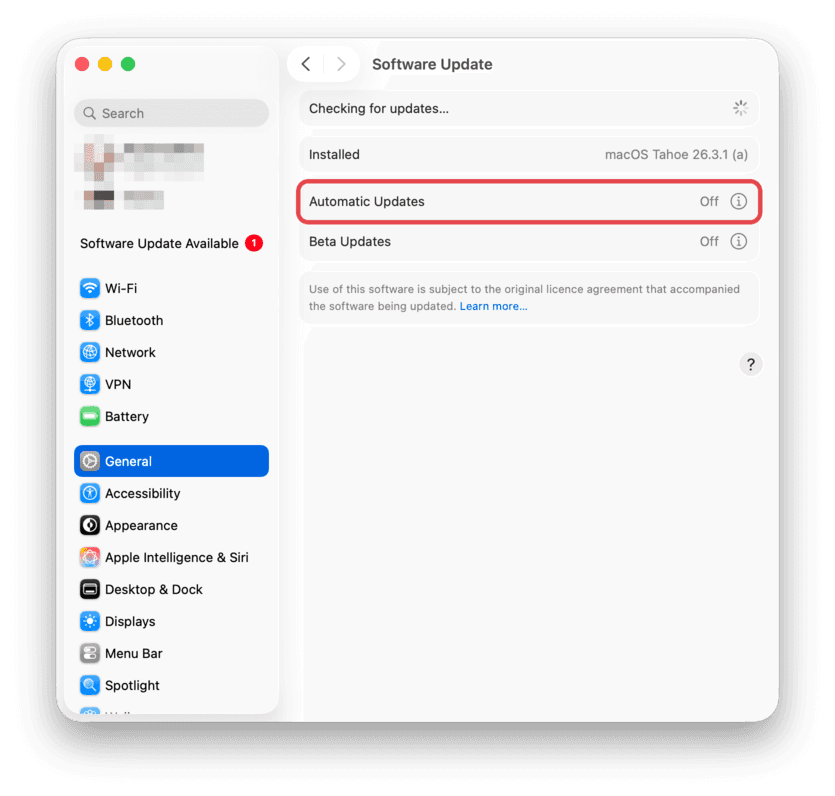
Back on the Software Update pane, the Automatic Updates row should now read Off.
Keep the Mac mini awake
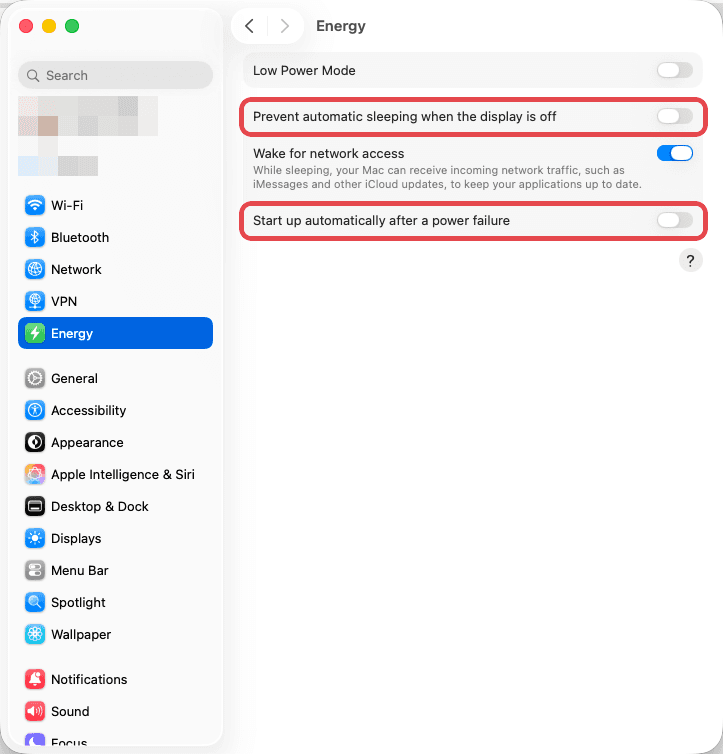
While you are in System Settings, open Energy in the sidebar and turn on:
- Prevent automatic sleeping when the display is off, so agents keep running with no monitor attached.
- Start up automatically after a power failure, so the Mac mini comes back by itself after a power cut.
Install updates yourself
Turning off automatic updates also delays security fixes. Pick a quiet time, roughly once a month, to update the Mac mini by hand:
- Open System Settings > General > Software Update.
- Click Update Now and let the Mac mini restart.
- Sign back in and check the Workle desktop app is running and shows as online.